Amenities Module

The Amenities module in Cybersuite X allows you to explore and book
available amenities in your building. Follow these steps to check availability,
view details, and make reservations if applicable.

Amenities Module

Steps to Access and Use Amenities

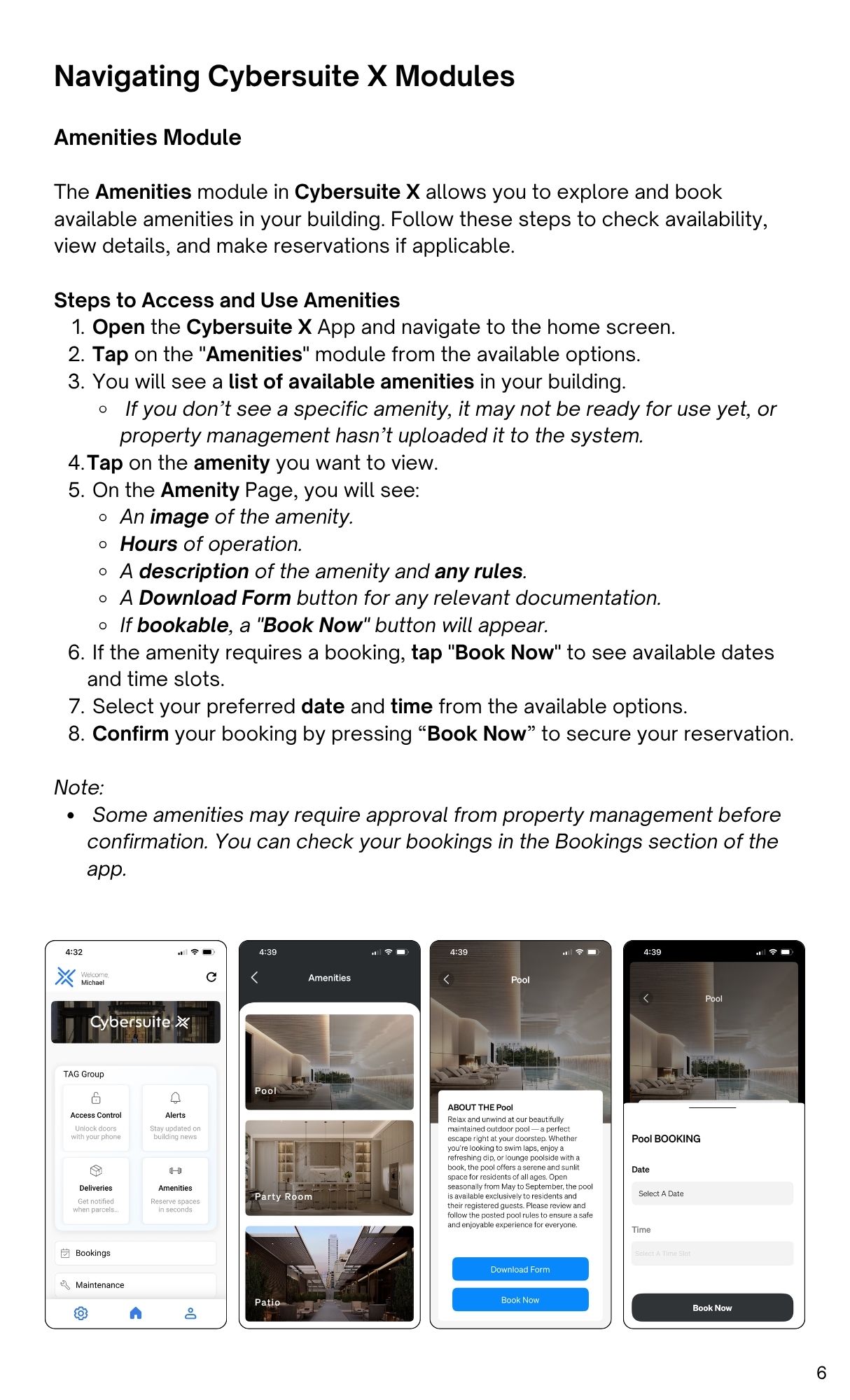
  1. Open the Cybersuite X App and navigate to the home screen.
  2. Tap on the "Amenities" module from the available options.
  3. You will see a list of available amenities in your building.
    • If you don’t see a specific amenity, it may not be ready for use yet, or
      property management hasn’t uploaded it to the system.
  4. Tap on the amenity you want to view.
  5. On the Amenity Page, you will see:
    • An image of the amenity.
    • Hours of operation.
    • A description of the amenity and any rules.
    • A Download Form button for any relevant documentation.
    • If bookable, a "Book Now" button will appear.
  6. If the amenity requires a booking, tap "Book Now" to see available dates
    and time slots.
  7. Select your preferred date and time from the available options.
  8. Confirm your booking by pressing “Book Now to secure your reservation.

Note:

  • Some amenities may require approval from property management before
    confirmation. You can check your bookings in the Bookings section of the
    app.