Bookings Module

The Bookings module in Cybersuite X allows you to view, manage, cancel andtrack your amenity reservations. Follow these steps to check your bookings andmanage them accordingly.

Bookings Module

Steps to View and Manage Bookings

  1. Open the Cybersuite X App and tap on the "Bookings" module.
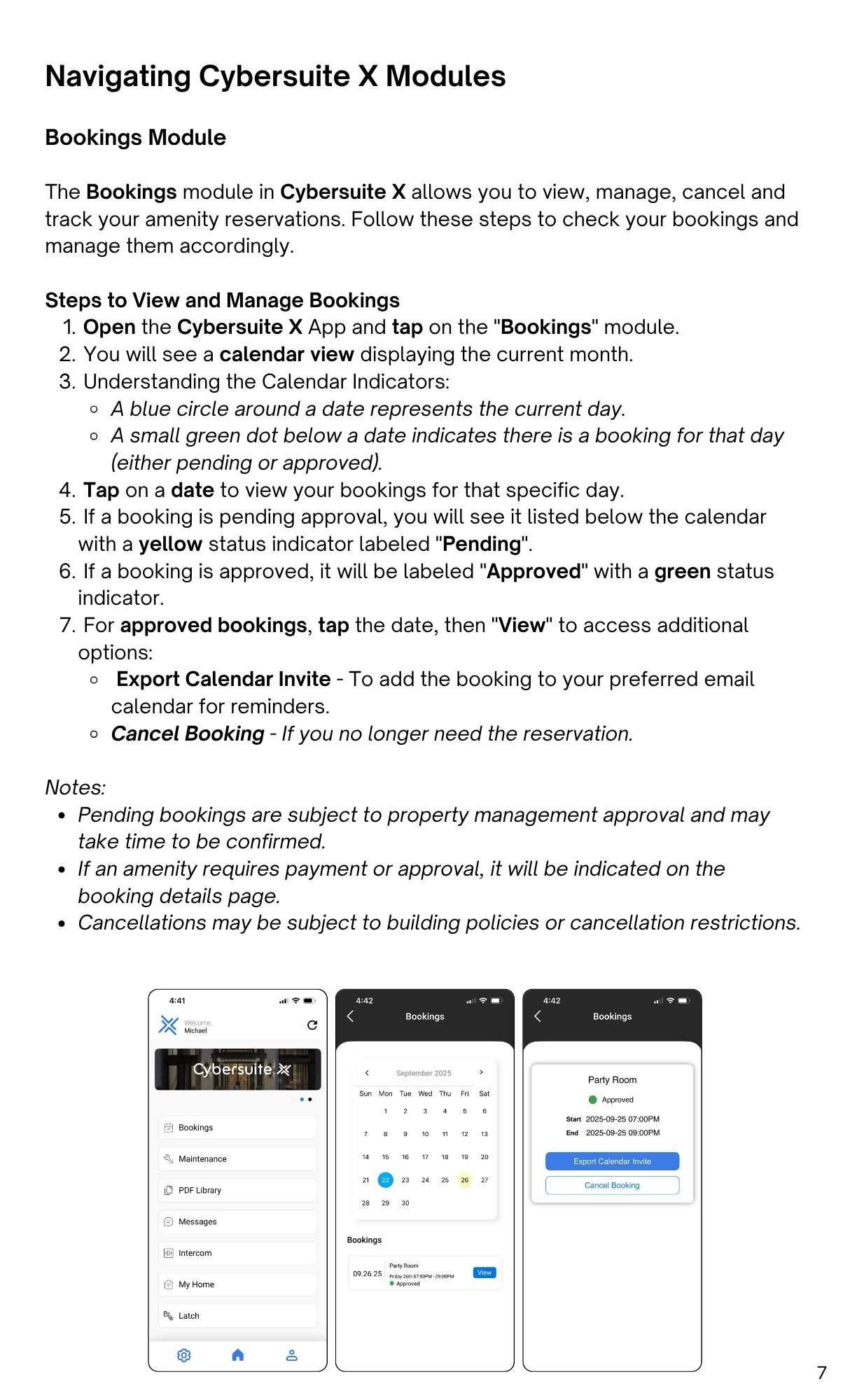
  2. You will see a calendar view displaying the current month.
  3. Understanding the Calendar Indicators:
    • A blue circle around a date represents the current day.
    • A small green dot below a date indicates there is a booking for that day
      (either pending or approved).
  4. Tap on a date to view your bookings for that specific day.
  5. If a booking is pending approval, you will see it listed below the calendar
    with a yellow status indicator labeled "Pending".
  6. If a booking is approved, it will be labeled "Approved" with a green status
    indicator.
  7. For approved bookings, tap the date, then "View" to access additional
    options:
    • Export Calendar Invite - To add the booking to your preferred email
      calendar for reminders.
    • Cancel Booking - If you no longer need the reservation.

Notes:

  • Pending bookings are subject to property management approval and may
    take time to be confirmed.
  • If an amenity requires payment or approval, it will be indicated on the
    booking details page.
  • Cancellations may be subject to building policies or cancellation restrictions.